Guide
How to block games
Mobile games raise a problem of numbers: you don’t block one, you block twelve, and the thirteenth gets installed the next day. Three ways to shut the whole category, future games included, with the steps of each and the button that gets around it.
First: block the category, not the game
On iPhone, the Screen Time picker offers the Games category: ticking it covers everything installed and everything that will be, with nothing to redo. It is the only setting that holds against a new game installed on a weak evening. Android has no equivalent: each game is set one by one, and a game installed tomorrow is covered by nothing. If one specific game is the problem — the one with daily rewards, the one with ranked matches — that is the one to name, and the one the exchange rate should target.
1. On iPhone, with Screen Time
- Open Settings, then Screen Time.
- Tap App Limits, then Add Limit.
- Tick the Games category at the top of the list, rather than one game after another, then Next.
- Set the time. For a full block, choose 1 minute, the smallest allowed.
- Make sure Block at End of Limit is on, then Add.
Apple Arcade games sit in the same category. If a game also has a web version, website blocking is set separately: Content & Privacy Restrictions → Web Content.
Once the limit is hit, the icon greys out and the app opens on a screen that offers Ignore Limit — “One More Minute”, “Remind Me in 15 Minutes”, “Ignore Limit for Today”. A block you lift with a thumb isn’t one. To close that door: Settings → Screen Time → Lock Screen Time Settings, and a four-digit passcode typed by someone else. The limit resets every night.
2. On Android, with Digital Wellbeing
- Open Settings, then Digital Wellbeing & parental controls.
- Tap the chart at the top, or Show your data.
- In the list, tap the hourglass to the right of each game.
- Pick the shortest time offered, then OK.
When the time is up, the app shows “App paused” until midnight. The workaround is two taps away on that same screen, and Digital Wellbeing has no passcode to protect it from you; the only lock is Family Link, meaning another account manages yours. For a list of apps on a schedule, Focus mode, on the same page, does the job — with the same “Take a break” button. On Samsung the page is called “Digital Wellbeing and parental controls”, under “App timers”.
3. With Tempo: shut by default, reopened by moving
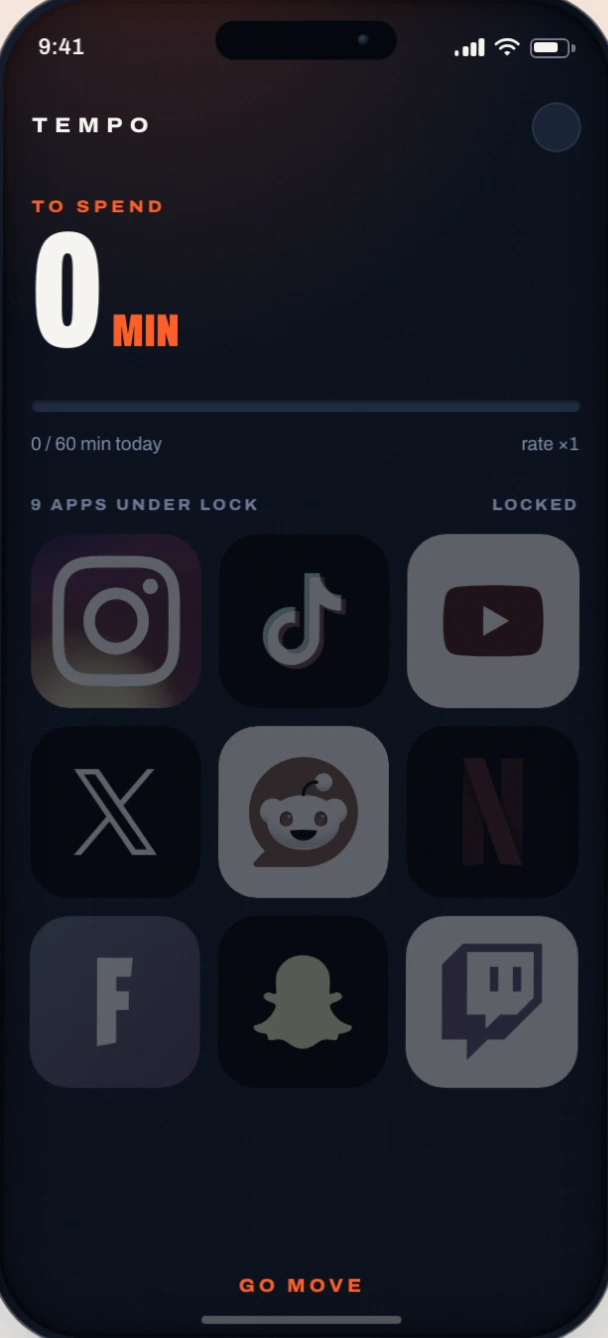
Both system settings leave an “ignore” button. Tempo replaces that button with a condition: the app stays shut while your screen-minute balance is at zero, and that balance only fills by moving — running, walking, the gym, cycling, at the exchange rate you chose.
- Install Tempo from the App Store or Google Play.
- On first launch, allow Health (to read your workouts and steps) and Screen Time (to block). On Android the permissions are called “usage access” and “display over other apps”; Tempo says where to find each one.
- Tick the Games category in the list — on iPhone, it covers future games. On Android, tick each game; a new game gets ticked when installed.
- Pick your rate: at ×1, a twenty-minute match costs twenty minutes of walking. The free cap of 60 minutes a day bounds the evening, whatever the day’s workout.
- That’s it. The app shuts at once, and reopens as soon as the balance is positive.
There is nothing to unlock, and nothing to ignore either: the only key is the sensor. A workout typed by hand into Health or Health Connect credits nothing. The minutes you spend inside drain the balance, and at zero everything shuts again — on iPhone, iOS does that on its own, with Tempo closed for hours. The balance is shared across every locked app. In the free version, spending is capped at 60 screen minutes a day: past that, what you earn waits for tomorrow. With no watch, a thousand steps are worth about ten minutes of walking, and the simulator on the home page runs the numbers with yours.
The notification catch
A blocked app keeps notifying: those banners come from the system, not the app, and none of the three methods has a say over them. A notification calling you towards a shut app is the worst of both worlds — so if the app goes under lock, the very next setting to change is its notifications, in your phone’s settings.
Frequently asked questions
How do I block every game at once, including the ones I’ll install later?
On iPhone, by ticking the “Games” category in the Screen Time or Tempo picker: any game installed later is covered. On Android there is no category: each game is ticked one by one, when installed.
Does the block also cover games in the browser?
Not by default. On iPhone, a website is blocked separately, under Content & Privacy Restrictions → Web Content, or from Tempo’s picker, which offers websites too. On Android, blocking covers apps only for now.
Do games reopen on their own once I’ve earned minutes?
Yes. There is nothing to unlock: as soon as your balance is positive, every blocked app opens normally. Credit lands even without opening Tempo, at the end of a workout or as your steps add up.
Does it work without a watch?
Yes: your phone’s steps become the currency, and Tempo then sets a floor so walking alone still funds something.
Your screen time is earned.
Pick your apps, set your exchange rate, go move. Free version on iPhone and Android, no account to create.