Guide
How to block apps
Blocking an app is easy. Making the block hold is the problem. Both systems have offered limits for years, and yet the world average still sits above 2 h 30 a day on social and video feeds (GWI, cited by DataReportal, Digital 2026 Global Overview). Three methods, with the steps of each and the button that gets around it — because that button is what decides.
1. On iPhone, with Screen Time
Two settings: an App Limit per app, and Downtime, which shuts everything except a list of apps over a time window.
- Open Settings, then Screen Time.
- Tap App Limits, then Add Limit.
- Tick the apps — or a whole category, “Social”, “Entertainment” — then Next.
- Set the time. For a full block, choose 1 minute, the smallest allowed.
- Make sure Block at End of Limit is on, then Add.
For a time window rather than a duration: Screen Time → Downtime, a schedule (say 9 pm – 7 am), and the apps you want to keep under Always Allowed. Everything else shuts at the set hour.
In both cases, the shut app opens on a screen that offers Ignore Limit: “One More Minute”, “Remind Me in 15 Minutes”, “Ignore Limit for Today”. Without a passcode, nothing stands in the way. To close that door: Settings → Screen Time → Lock Screen Time Settings, and a four-digit passcode typed by someone else. A limit resets every night.
2. On Android, with Digital Wellbeing
Two settings here as well: an app timer per app, and Focus mode, which pauses a list of apps at once, on demand or on a schedule.
- Open Settings, then Digital Wellbeing & parental controls.
- Tap the chart at the top, or Show your data.
- In the list, tap the hourglass to the right of the app, pick the shortest time, then OK.
- For a whole list: back on the main page, tap Focus mode, tick the apps to pause, then Turn on now or Set a schedule.
A paused app shows “App paused” until midnight, or until the window ends. The workaround is two taps away on that same screen: delete the timer, or “Take a break” from Focus mode. Digital Wellbeing has no passcode to protect it from you; the only lock is Family Link, meaning another account manages yours. On Samsung the same page is called “Digital Wellbeing and parental controls”.
These limits think in duration: they never ask for anything in return. They pit your evening will against your morning will, and the evening one wins. The block that holds is therefore not the one that forbids the hardest. It is the one whose exit costs something.
3. With Tempo: unlocking is paid in minutes of activity
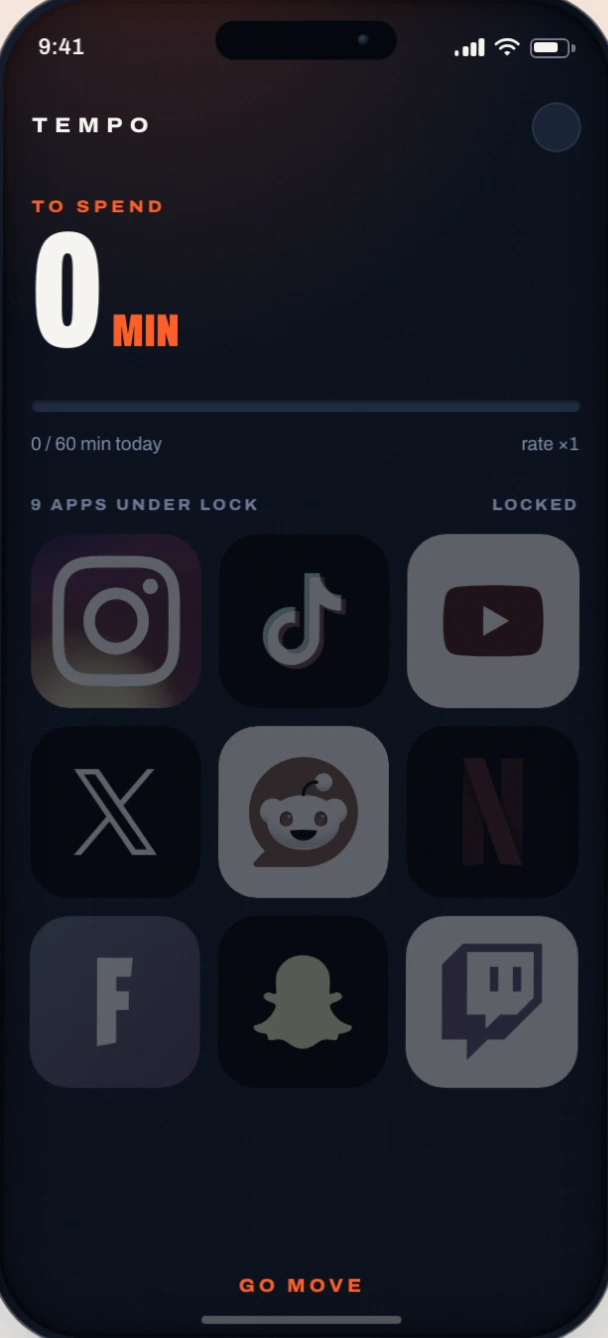
You pick the apps that eat your days; they stay shut. Each minute of real activity — running, walking, the gym, cycling — credits you screen minutes, at the exchange rate you chose. While the balance is positive, every app opens. Using them spends it. At zero, everything shuts again.
- Install Tempo from the App Store or Google Play.
- On first launch, allow Health (to read your workouts and steps) and Screen Time (to block). On Android the permissions are called “usage access” and “display over other apps”; Tempo says where to find each one.
- Tick the apps to lock, or whole categories, future apps included. Three apps are usually enough; the number is unlimited, free version included.
- Pick your rate: 1 minute of activity for 1 screen minute, or for 2, or for 3.
- That’s it. The apps shut at once, and reopen as soon as the balance is positive — nothing to unlock, and no button to ignore.
With no watch, your steps are the currency: a thousand steps are worth about ten minutes of walking, paid at your lane’s rate. And workouts typed by hand into Health or Health Connect are left out of the totals — a workout declared on a keyboard isn’t a workout.
On iPhone: iOS holds the lock
Tempo uses Apple’s Screen Time API (Family Controls, ManagedSettings, DeviceActivity). Your app selection is represented by opaque tokens: Tempo doesn’t even know the names of the apps you chose, iOS won’t reveal them. The block itself is enforced by the system.
Practical consequence: the lock holds with the app closed, and the count follows real usage as measured by iOS. On a 44-minute session recorded on device, Tempo charged 43 minutes, and the re-block followed the last threshold within five seconds. Nothing to reopen, nothing to relaunch, nothing to authorise again.
On Android: a service on watch, a screen on top
Android has no equivalent to Apple’s opaque tokens, and it would be dishonest to pretend the two systems are alike. There, Tempo uses the “usage access” permission to know which app is in the foreground, and an overlay to place its blocking screen on top. A foreground service — the permanent notification — keeps the count running.
So on Android Tempo knows the technical names of installed apps, which is not the case on iPhone. It reads nothing of what happens inside the apps, though: no content, no messages, no pages visited. The permission details, system by system, are on the privacy page.
How many apps, and what it costs
The number of blocked apps is not what you pay for: the free version blocks as many apps and categories as you want, and lets you spend up to 60 screen minutes a day. Past that, what you earn waits for tomorrow. Tempo Pro adjusts that cap, sets a rate per sport, lets your watch raise the rate when you push (on iPhone) and adds strict mode, where loosening a setting waits 24 hours.
Frequently asked questions
How many apps can Tempo block?
As many as you want, whole categories included, free version included. The cap on the number of apps was removed: blocking is not the paid part. Most people pick three.
How do I block an app for good, with no “ignore” button?
On iPhone, a Screen Time limit always keeps its button; only a passcode typed by someone else locks it. On Android, Digital Wellbeing has no passcode at all. Tempo has no button: the only way out is a positive balance, and that balance only comes from a sensor.
Does the block hold when Tempo is closed?
On iPhone, yes: iOS itself enforces the block and re-locks at zero, even with Tempo closed for hours. On Android, Tempo has to keep a service running — that is the permanent notification you see, and the reason the app asks to be exempt from battery optimisation.
Can the block be bypassed?
You can uninstall Tempo, and the block goes with it — unless, in strict mode on iPhone, you chose to block deletion: the “Delete App” button then disappears from your home screen for every app, Tempo included, and getting it back waits 24 hours. Tempo is not parental control: it is chosen self-restriction. What it removes is not your ability to open TikTok — it is the reflex that makes opening it free.
Your screen time is earned.
Pick your apps, set your exchange rate, go move. Free version on iPhone and Android, no account to create.